The Website Text card is used to send text messages to customers.
The text message content sent via the Website Text card can be up to 640 characters.

Select the icon symbol to insert additional icons into the message content.

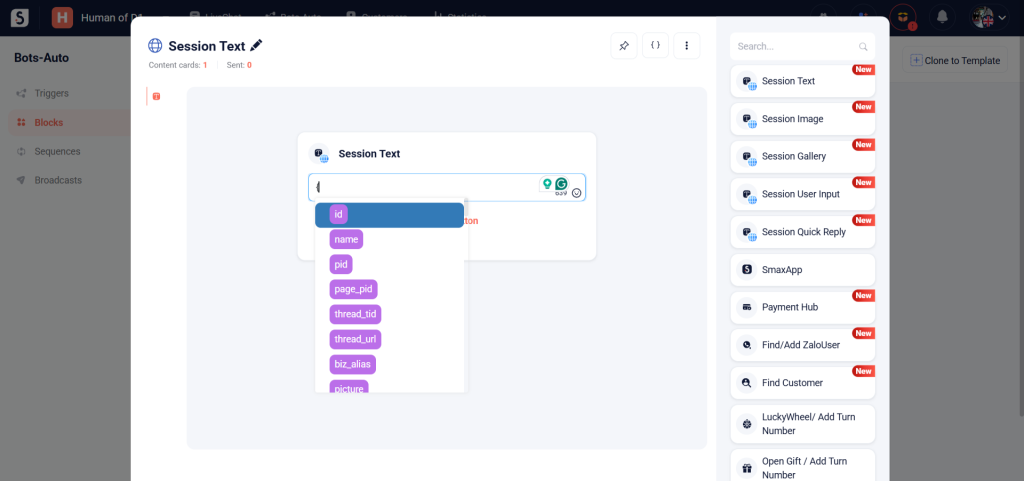
Type the { character to display a list of suggested attributes.
You can view the list of commonly used attributes here.
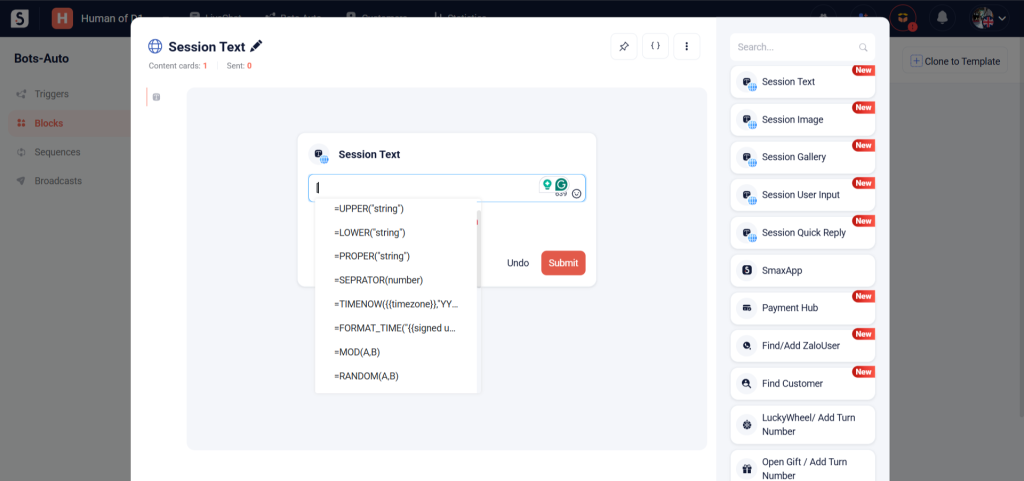
Type [ to display a list of suggested functions.
You can view the list of functions here.
Select Add Button to include buttons in the message content. Note that each Website Text card can have a maximum of 3 buttons.
The Website Text card supports 4 types of buttons:
- Block: When the customer clicks the button, the chatbot will send the next block of the script to the customer.
- To create a Block button, you need to enter the button title and the block that will be sent to the customer.

- URL: When the customer clicks the button, the browser will open the link specified in the button.
- To create a URL button, you need to enter the button title, the link to the page you want to open, and the window type that will open when the customer clicks the button:
- New Tab: The link will open in a new browser tab.
- Pop Up: The link will open as a pop-up within website. You need to add the domain to Domain Whitelisting in the Business settings to enable the pop-up format. You can find the guide here.

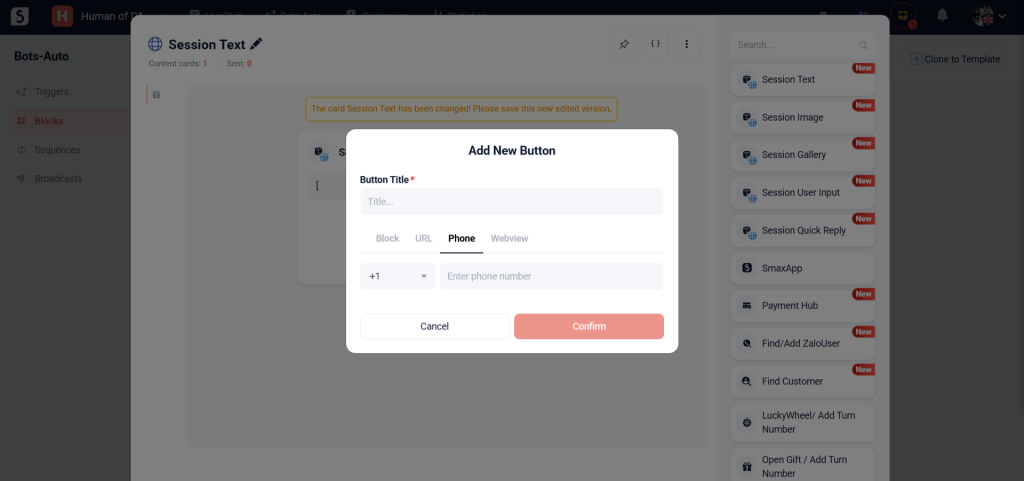
- Phone: When the customer clicks the button, the system will open the calling application and initiate a call to the specified phone number.
- To create a Phone button, you need to enter the title, country code, and phone number.
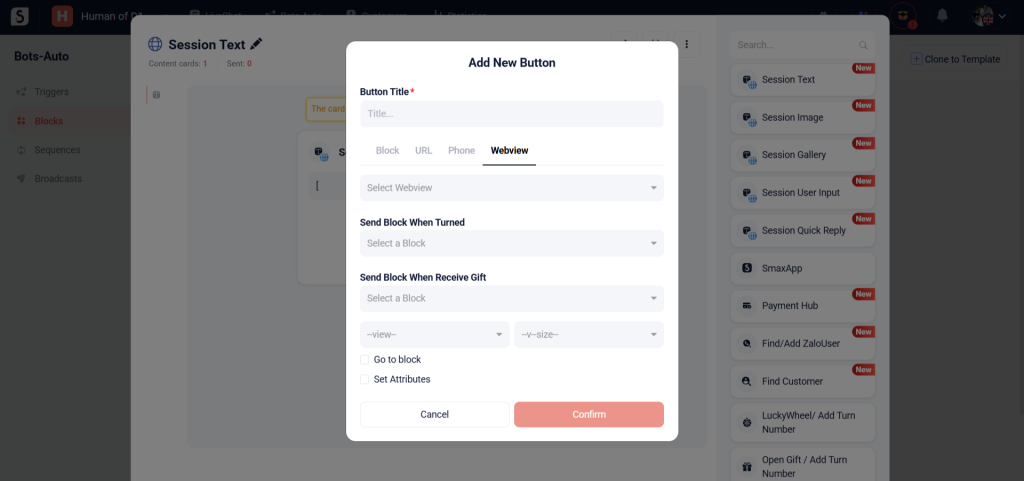
- Webview: The Webview button will open windows for Extend Modules such as Gift Opening Game, Lucky Wheel, Form Builder, etc.
- To create a Webview button, you need to select the type of webview you want to open and then choose the name of that webview.