
The Messenger Gallery card is used to send a list of images in a gallery format.
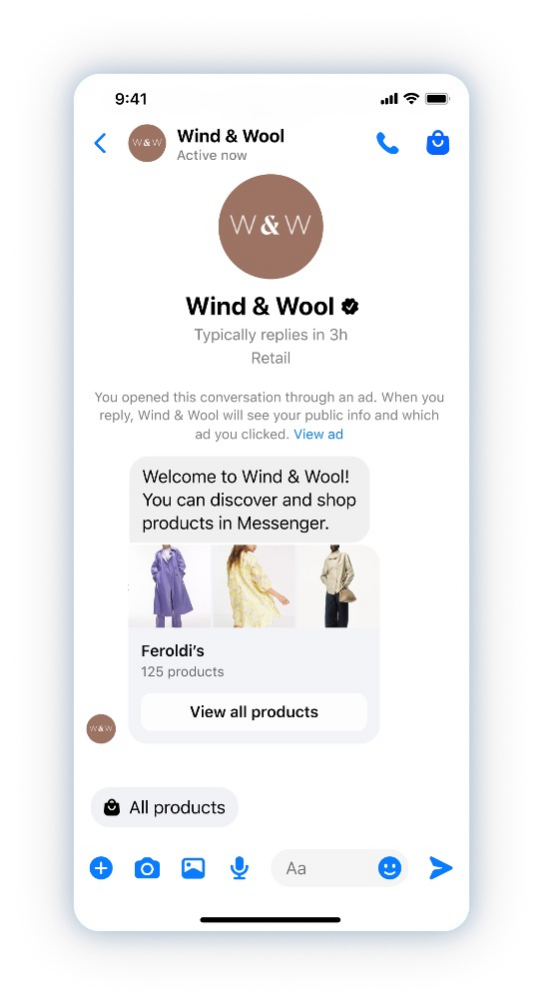
To use the Messenger Gallery card to create a gallery on Messenger, you need to select the images to display in the gallery. You can refer to the guide on how to upload images to SmaxAI or Imgur here.
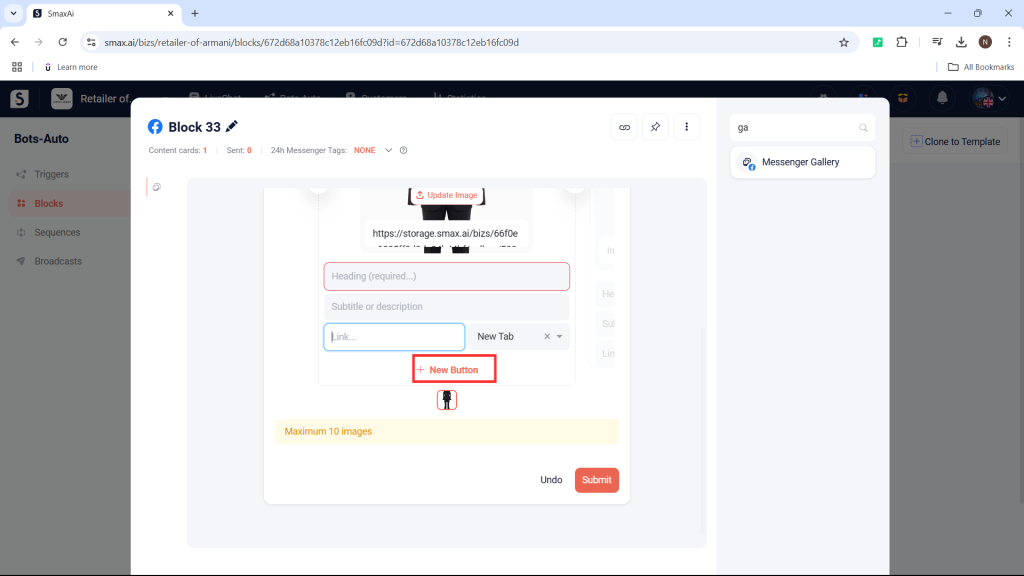
Then, enter the heading and the subtitle for the images:
- The heading in the Messenger Gallery card is mandatory.
- The heading and subtitle can be a maximum of 80 characters each.
- The images support formats such as jpg, jpeg, and png.
- The maximum image size is 2.5 MB.
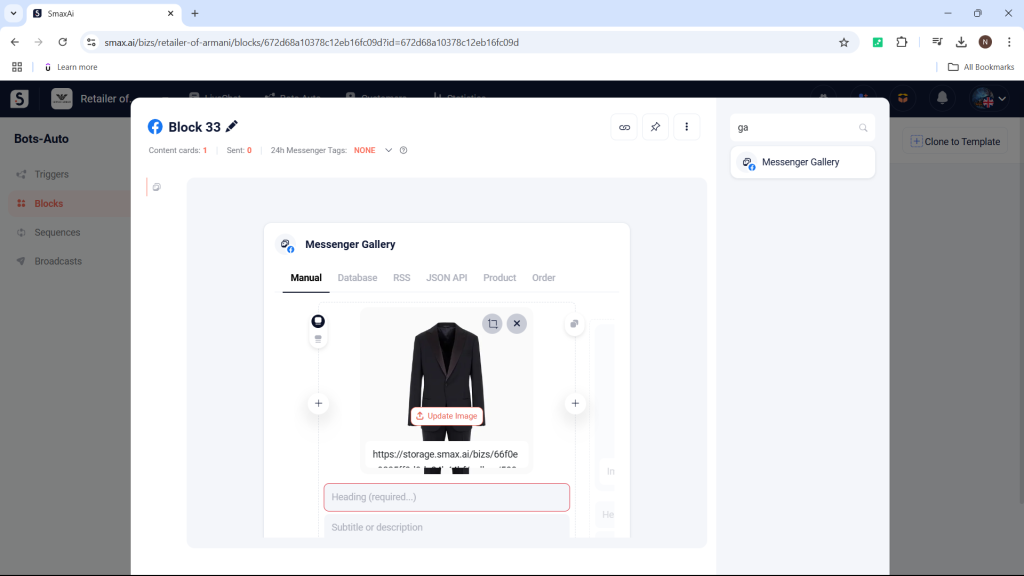
Images in the Messenger Gallery card support 2 sizes:
- Square images with a 1:1 aspect ratio
- Horizontal rectangular images
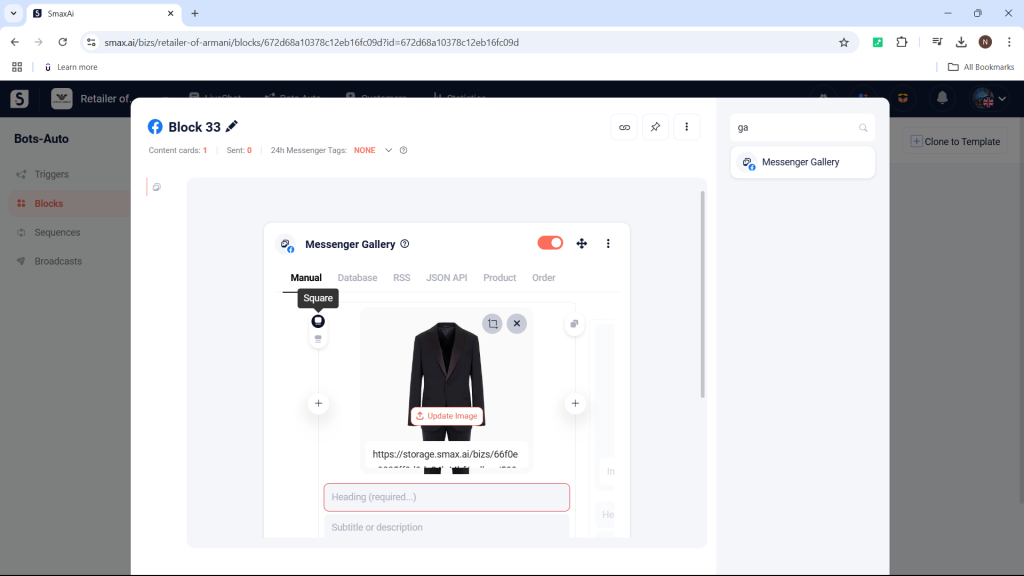
The Link option allows your customers to open a URL when they click on an image in the gallery. If you don’t want to use this feature, simply leave the field blank.
You can choose how the link is displayed:
- New Tab: Opens the link in a new browser tab.
- Pop-Up: Opens the link in a pop-up window.
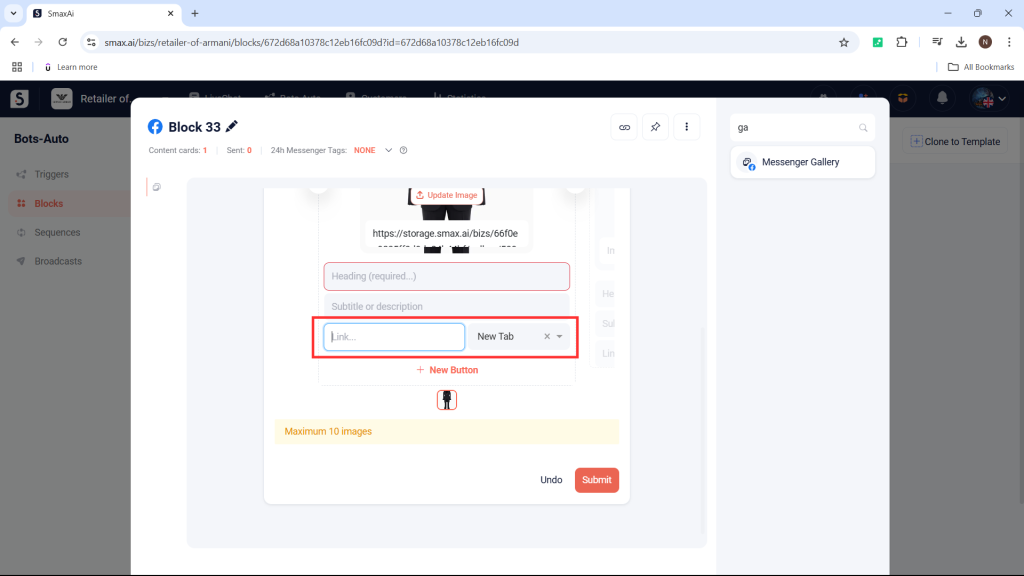
You can add buttons to the gallery by selecting New Button.
- Each image in the gallery can have a maximum of 3 buttons (similar to the buttons in the Messenger Text card).
- You can view the guide on how to set up buttons here.
After creating an image in the gallery, you can select Duplicate to create another image in the gallery that is identical to the one you just created.
You can select the X icon to delete an image from the gallery.


