Skip to content
Test Store

Test Store

  • Blog
  • About Us
  • Solution
    • Apparel & fashion
    • Home & Garden
    • Beauty & Personal Care
    • Food and Beverage
  • Help Center

Getting Started

5
  • Template Library
  • Creating Biz
  • Module Introduction
  • Explain the service package
  • Biz API

Live Chat

20
  • FollowUp
  • Chat Session
  • Bot
  • Overview
  • Merged Channel
  • Conversation filter
  • Tags
  • Message Templates
  • Internal Messages
  • Meta Conversion API
  • Add new channel
    • Telegram
    • WhatsApp
    • Tiktok User
    • Line
    • Website
    • Instagram
    • Facebook
  • Conversation Role
    • Manual splitting
    • Automatic allocating
    • Configure roles

Bot-Auto

138
  • Introduction to Bot Automation
  • Blocks
  • Sequences
  • Broadcast Sending
  • Advance Filters
  • Funtions
  • Trigger List
    • View List of Triggers
    • Facebook
      • Messenger Welcome Message
      • GenAI
      • Messenger Shopping
      • LiveChat Tags
      • Bot API
      • Click To Message
      • Messenger Persistent Menu
      • Comment
      • Keywords
      • Messenger Ref Link
      • Messenger Default
      • Messenger Welcome
    • LINE
      • Trigger Tag
      • Bot API
      • Group GenAI
      • GenAI
      • Group Keywords
      • Keywords
      • Line Group Default
      • Line Default
      • Line Group Welcome
      • Line Welcome
    • Tiktok User
      • Trigger Tag
      • Bot API
      • GenAI
      • Keywords
      • Tiktok User Default
      • Tiktok User Welcome
    • Instagram
      • GenAI
      • LiveChat Tags
      • Bot API
      • Instagram Persistent Menu
      • Comment
      • Keywords
      • Instagram Ref Link
      • Instagram Default
      • Instagram Welcome
    • Telegram
      • LiveChat Tags
      • Bot API
      • Gen AI
      • Keywords
      • Telegram Welcome
      • Telegram Default
    • Website
      • Trigger Tag
      • Bot API
      • GenAI
      • Keywords
      • Website Default
      • Website Welcome
  • Functional Card
    • LINE
      • Line Template
      • Line Quick Reply
      • Line User Input
      • Line Image
      • Line Text
    • Facebook
      • Messenger Shopify Order Details
      • Add Album
      • Messenger Template
      • Messenger Receipt
      • Messenger Product
      • Messenger CAPI
      • Messenger Handover
      • Messenger Marketing Message
      • Messenger Attach File
      • Messenger Audio
      • Messenger Video
      • Messenger Feedback
      • Messenger Media
      • Facebook Audience
      • Facebook Comment
      • Messenger Block/Unblock
      • Messenger Shipping
      • Messenger User Input
      • Messenger Typing
      • Messenger Gallery
      • Messenger Quick Reply
      • Messenger Image
      • Messenger Text
    • WhatsApp
      • WhatsApp Document
      • WhatsApp Template
      • WhatsApp User Input
      • WhatsApp Audio
      • WhatsApp Video
      • WhatsApp Image
      • WhatsApp Interactive
      • WhatsApp Text
    • Instagram
      • Instagram Shopify Order Details
      • Instagram Audio
      • Instagram User Input
      • Instagram Video
      • Instagram Gallery
      • Instagram Image
      • Instagram Text
    • Website
      • Website Text
      • Website Image
      • Website Gallery
      • Website User Input
      • Website Quick Reply
    • Tiktok Shop
      • Tiktok Shop Image
      • Tiktok Shop Text
    • TiktokUser
      • TiktokUser User Input
      • TiktokUser Text
    • Advanced Cards
      • Shopify
      • Change Tags
      • Custom Image
      • Open Gift / Add Turn Number
      • Find Customer
      • Thread Note
      • Assign to Staff
      • GenAI
      • Note
      • Follow Up
      • Thread Status
      • On/Off Bot
      • Go To Block
      • JsonAPI
      • Delay
      • Sequence
      • Set Attributes
      • Parse Content
      • Google Sheet
      • Send QR
      • Send Email
      • Check Time Range
      • Time Calculator
      • Send Block
      • A/B Testing
      • Input/Output
      • Table Data
      • Lucky Wheel/ Add Turn Number
    • Telegram
      • Telegram Image
      • Telegram Text

Customers

5
  • Customer Profile Panel
  • Export
  • Import
  • Segments
  • Customer Search

Settings

25
  • Edit Your Business
  • Channels
  • Members
  • Webview Domains
  • Attributes
  • Tags
  • Message Templates
  • API
  • Packages
  • Logs
  • Integration
    • Internal form
    • DeepSeek
    • XAI (Grok 3)
    • Claude
    • Gemini
    • Google Sheet
    • SMTP
    • Embedded Form
    • Groq
    • OpenAI
    • Shopify
      • Connect to Product Management Module
      • Connect to Order Management Module
      • Connect to Chatbot
      • Use Shopify in Live Chat Module
      • Intergrate Shopify

Extend Modules

49
  • Messenger Templates
  • Selling Page
  • WhatsApp Template
  • Quizzes
  • Order Management
  • Meta Catalogs
  • Marketing Messages
  • Meta CAPI
  • Products
  • Meta Custom Audience
  • Email Builder
    • Activate Email Builder
    • Connecting and Using Email Builder
    • Edit Email Interface
  • Customize Image
    • Activate Customize Image
    • Create Personalized Image
    • Layer Configuration
  • Follow Up
    • Follow Up Using GenAI
    • Follow Up Content
    • Activate Follow Up
    • Connecting to Chatbot
    • Follow Up Settings
  • Gift Opening Game
    • Activate Gift Opening Game
    • Connecting to Chatbot
    • Content Configuration
    • Edit Gift
    • Open Gift Design
    • Notification Configuration
  • Lucky Wheel
    • Activate Lucky Wheel
    • Connecting to Chatbot
    • Content Configuration
    • Edit Prizes
    • Spinner Design
    • Spinner Configuration
  • Form Builder
    • Activate Form Builder
    • Connecting to Chatbot
    • Form Configuration
    • Element Configuration
  • Data Table
    • Data Table Use Cases
    • Data Table Setup
  • GenAI
    • Demo and Review
    • Config
    • Prompts
    • Create GenAI Agents
    • AI Agent Types
      • Translate
      • Post Content
      • Quiz Maker
      • Conversation Note
      • Message Content
      • AI Chatbot

Statistic

5
  • Interactive
  • Tags
  • Marketer
  • Supporter
  • Customers
View Categories
  • Home
  • Help Center
  • Extend Modules
  • Quizzes

Quizzes

Est reading time: 2 minutes

The Quiz Module is designed to create webview-based multiple-choice tests, quizzes, and quick question challenges, offering an interactive experience for users.

Activating the Module #

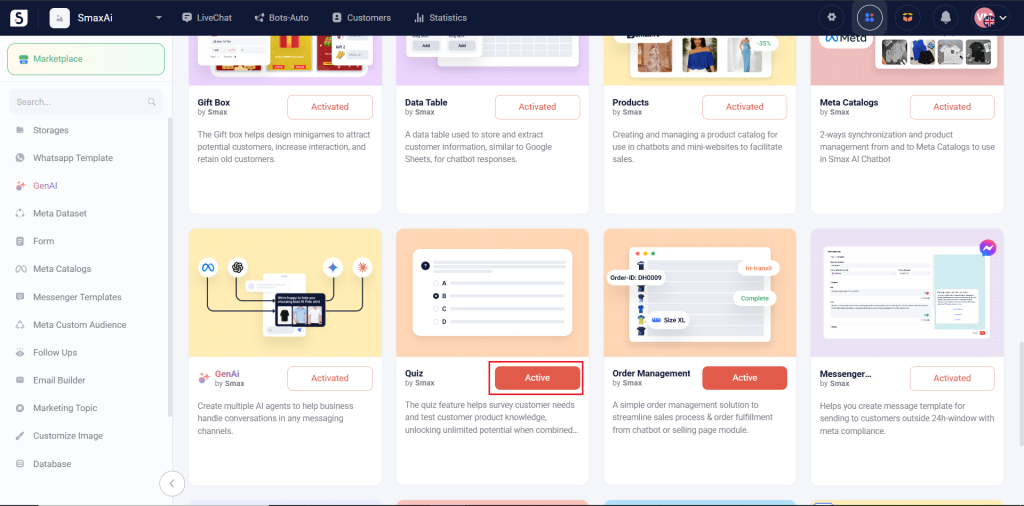
To activate the Quiz Module, navigate to Extend Modules, locate the Quiz module, and click Active. Once activated, it will appear in the module list on the left panel.
Quiz Editing #

In the Quiz module, click Create to create a new quiz. Then, choose the pen icon to edit it.

Core Configuration #

You can customize the quiz by setting its name, theme color, display mode, number of correct answers, time limit, question scoring, answer and question shuffling, result storage attribute, and response limits.

(1) Logo: Upload your brand logo

(2) Style Color: Choose the color theme that match your brand logo

(3) Display type: You can display All or One question at a time

(4) Number of correct answers: You can set One correct answer or Multiple correct answers

(5) Time to do (m): Enter the maximum time allowed to complete the quiz, in minutes.

(6) Points per question: Points for 1 correct answer

(7) Mix content: Mix the ordering of answers and questions. You can select Do not mix, mix questions, mix answers, or mix both answers and questions

(8) Save points to attribute: Select an attribute where the final quiz score will be stored after completion.

(9) Limit the number of replies: Set how many times a user can submit answers to the quiz.

Language Localization #

You can customize certain texts in the quiz.

For example: The text shown above the question can be customized. If no text is entered, it will display the default label “Question”.

Questions #

You can add questions to the quiz.

(1) Enable the question

(2) Enter the question content

(3) You can upload an image, video or add a video from youtube (optional)

(4) Add answers and set the correct answer

Connect to Chatbot #

The Quiz Module can be integrated into chatbots using interactive buttons of Messenger Text card or Messenger Gallery card.

Drag and drop a card, click New Button, choose Webview (1), then select the quiz you created (2).

Updated on 05/08/2025

What are your Feelings

  • Happy
  • Normal
  • Sad

Share This Article :

  • Facebook
  • X
  • LinkedIn
  • Pinterest
WhatsApp TemplateOrder Management

Leave a Comment Cancel reply

Table of Contents
  • Activating the Module
  • Quiz Editing
    • Core Configuration
    • Language Localization
    • Questions
  • Connect to Chatbot
© 2026 Test Store • Built with GeneratePress