
The Member Settings allow you to create roles and assign permissions for employees within your business.
1. Create Role #
Step 1: In the Member Settings, select the Roles tab, then choose Add Role.

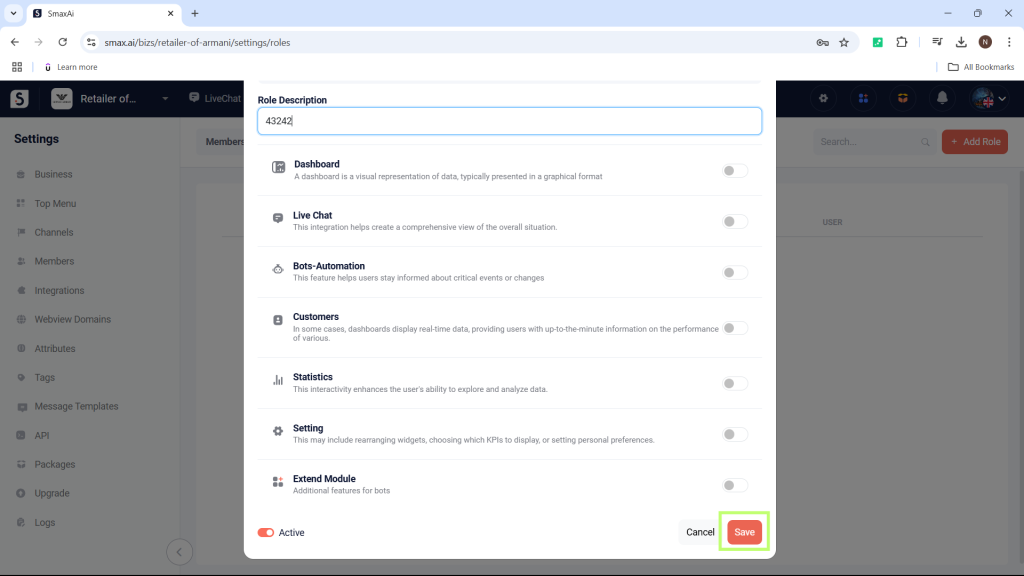
Step 2: Enter the role name (required) and role description (optional), then enable the modules and features you want to add for that role.
List of modules and permissions in the modules:
Dashboard: Updating
Live Chat
| Permission | Description |
|---|---|
| LEADER | Has the authority to view all conversations, assign conversations to support staff (in split conversation mode), configure tags, quick reply templates, etc., in the LiveChat module. |
| MAIN SUPPORT | Responsible for the main conversation assigned, counted in KPI from the conversation. |
| ASSISTANT SUPPORT | Assists when the MAIN SUPPORT staff cannot respond to the conversation; does not count in KPI. |
When using the split conversation feature, you need to configure all three roles for employees to use the feature effectively.
Bot-Automation
| Permission | Description |
|---|---|
| Setup Bot | Has the authority to view and edit scenarios in the module. |
| Preview Bot | Only has the authority to view scenarios, no editing rights. |
Customers: Permission to view, edit, import, and export customers from channels.
Statistics: Permission to view reports on customers, messages, interaction levels, etc.
Settings
| Permission | Description |
|---|---|
| Business | Permission to edit business information and general configurations for the business. |
| Channels | Permission to edit the business’s channel connections. |
| Members | Permission to manage and assign roles to employees in the business. |
| Integrations | Permission to manage and edit connections with other platforms. |
| Webview Domains | Permission to add domains to the business. |
| Attributes | Permission to edit attributes in the business. |
| Block Templates | Permission to add quick block send templates in the LiveChat module. |
| Tags | Permission to add tags in the LiveChat module. |
| Message Templates | Permission to add message templates in the LiveChat module. |
| API | Permission to manage API tokens. |
| Packages | Permission to manage and upgrade subscription packages. |
| Upgrades | Updating |
Logs: Permission to view the activity history of the Bot – Automation system.

Then select Save to create the new role.
2. Edit Role #
To edit a role (add or remove permissions), select the edit icon next to the role.

After making the edits, select Save to apply the changes.

3. Add Employee #
To add an employee to the business, the employee must log in to SmaxAi.
Step 1: Go to the Personal Profile section and copy the email of the employee you want to add to the business.

Step 2: In the Member Settings, select Add Member.
Then enter the email of the employee you want to add, select a role for the employee, and click Save.

You can edit the permissions for an employee by selecting the ROLE column and choosing the desired role to change.


