
Connecting Shopify to this extended module allows you to easily manage and automatically sync your orders created on both platforms in just one panel in Smax AI.
This is part 4 of the series on how to make the most of your Shopify integration in Smax AI.
- Part 1: Connect Shopify to Smax AI (more information here)
- Part 2: Use Shopify in Live Chat (more information here)
- Part 3: Connect Shopify to Chatbot (more information here)
- Part 4: Connect Shopify to Smax AI Order Management
- Part 5: Connect Shopify to Smax AI Product Management (more information here)
1. Import Orders from Shopify into Smax AI #
First, activate Order Management Module. If you haven’t already, enable this module. See activation guide.

Go to the Order Management module and click Download.
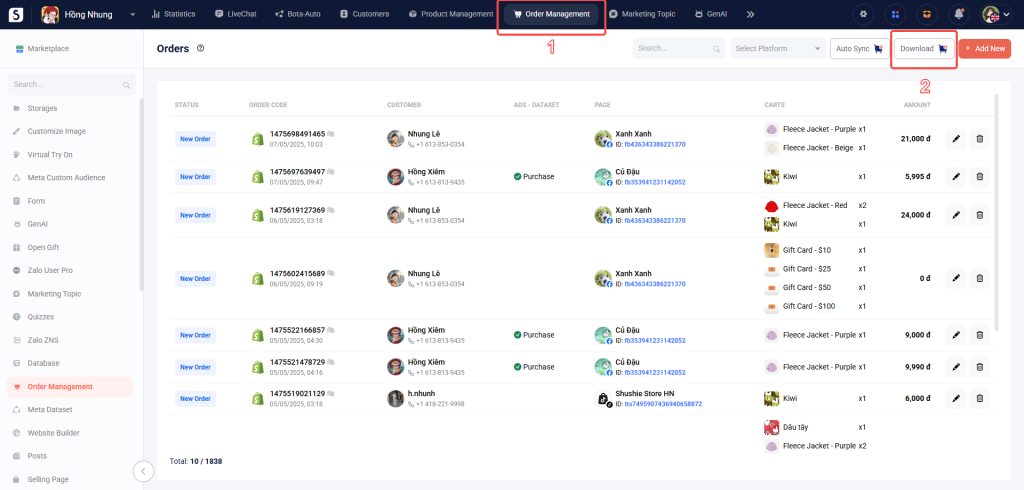
Select the platform (Shopify), choose the integration account, and set your order limit. Click Scan to fetch order data.

Click Save to import the selected orders into Smax AI.

2. Auto-Sync Orders from Shopify to Smax AI #
Choose Auto-Sync Order in the Integration window to allow this to function properly.

When a new order is created in Shopify using a customer profile that matches one in Smax AI, the order will be auto-synced into the Smax AI system.


