
The Products module helps create and manage products, where you can view an overview of existing products.
1. Activate Products Module #
Go to Extend Modules, activate Products module.

You can:
- View the total number of products on the Products page.
- Add, edit, and delete products.
- Search by SKU, product name, or category assigned to the product.
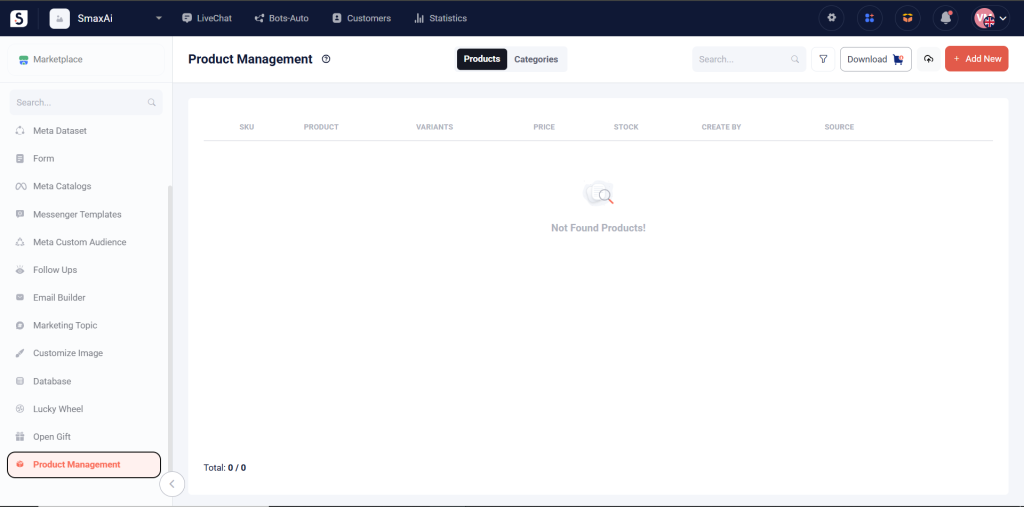
2. Adding a New Product #
Step 1: To add a new product, go to Product Management in Marketplace, click Add New.
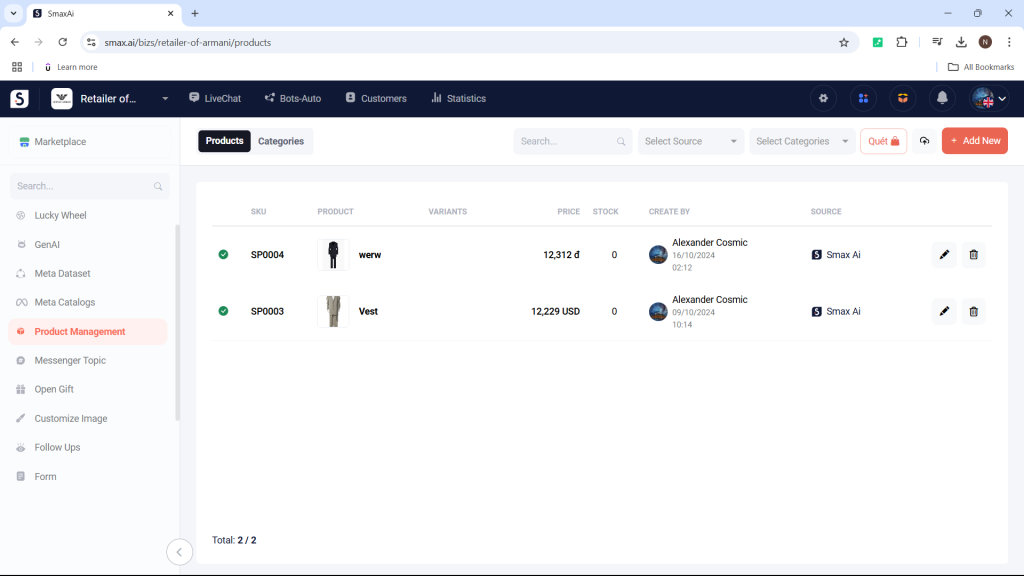
Step 2: Enter product information
- Product Name:
- Product Description: A detailed description of the product’s material, color, etc
- Brand: The brand of the shop
- URL: Product URL link
- Product Type: Trousers, Shirts, etc
- SKU (Product Code): Product management code in the system
- Barcode: Used for printing labels on product packaging
- Original Price: Market selling price
- Sale Price: Discounted price
- Stock: Total stock quantity

- Property: A distinct feature you want to differentiate across product versions
- Enter values: Each attribute can have multiple values. To create values for an attribute, enter the name of the value and press Enter
- Variant: Variants represent all possible options of a product, created by combining attributes
You can add multiple attributes for a product, and their combinations generate various product variants.
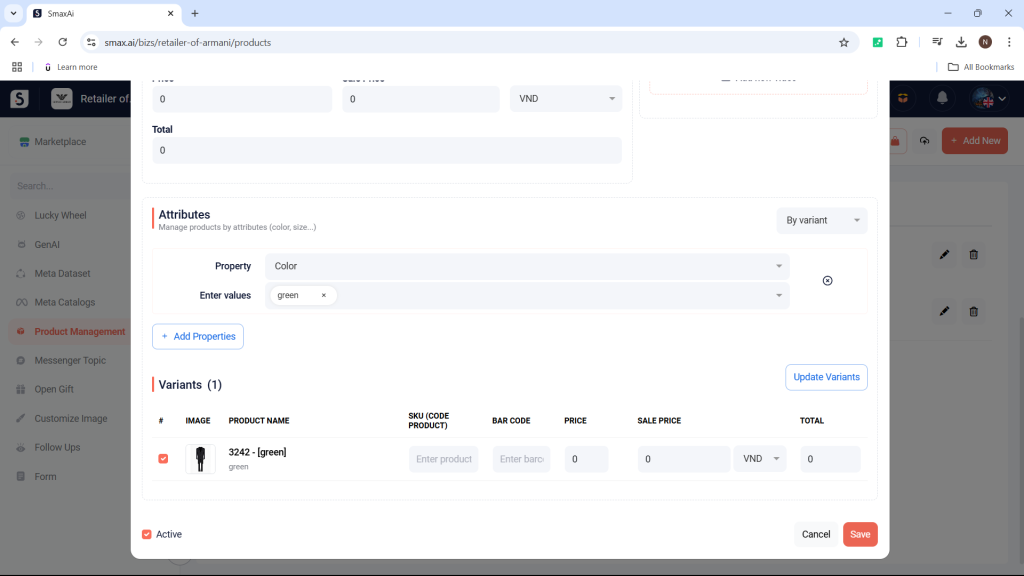
Example:
Suppose you sell a shirt with two attributes: Size and Color. For size, you have three values: Large (XL), Medium (L), and Small (M). For color, you have two values: Yellow and Blue. The system will automatically generate the following variants.
Product Category #
Use the Product Category feature to organize products into different categories.


