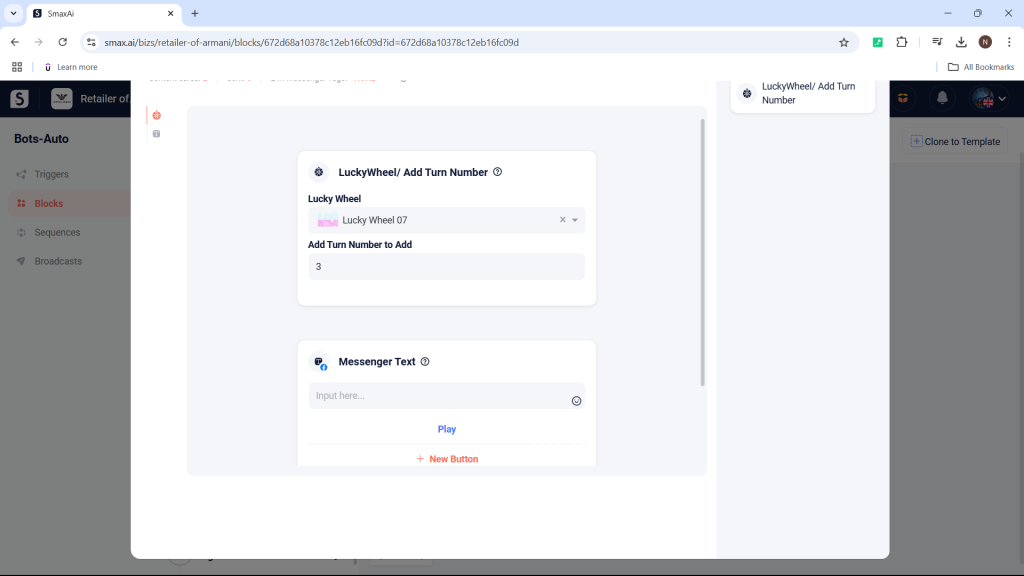
The Lucky Wheel / Add Turn Number card is used to add turns for the lucky wheel game created in the Lucky Wheel Module.
1. Connect a Lucky Wheel Game to Chatbot #
Step 1: Create a Block in the Bot-Auto module, then add a Messenger Text card with a “Play Now” button inside the block.
Step 2: In the button configuration, select Webview, then choose Lucky Wheel and select the wheel you created in the module.
Refer to this guide on how to create a Lucky Wheel game.
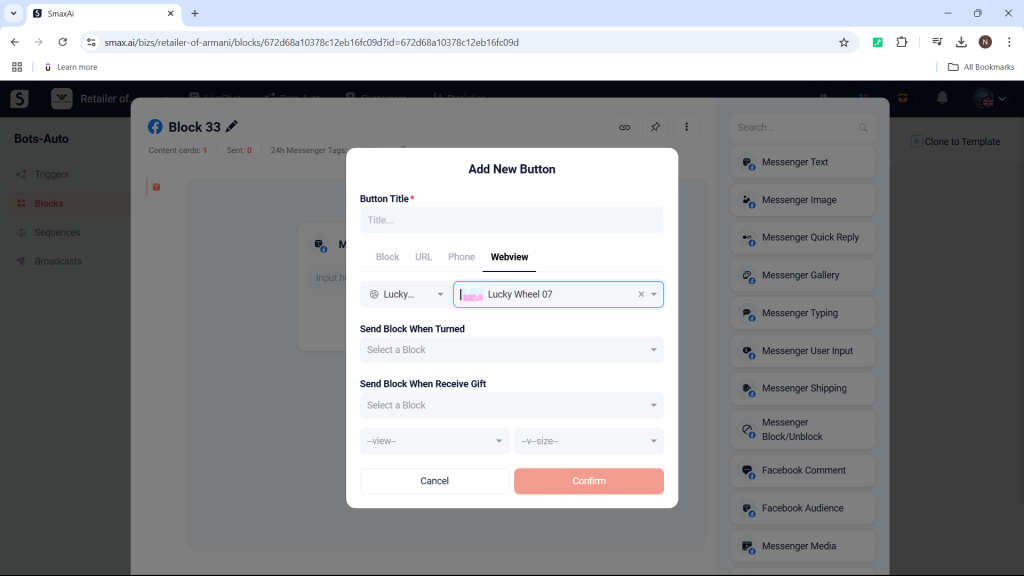
Step 3: Create an additional block for Send Block When Receiving Prize to send a notification once the customer finishes spinning. Select the display style for when the customer opens the game:
- PopUp: Opens the game within the Messenger window.
- New Tab: Opens the game in a new window.
Step 4: In the confirmation block after the customer finishes spinning, use a Messenger Text card to notify the customer. Make sure to use the correct attribute to display the prize name stored in Wheel Configuration.
2. Add More Turn #
To add more spins for the customer, use the LuckyWheel/Add Turn Number card above the Messenger Text card with the “Play Game” button. Select the correct wheel to add spins to and enter the number of spins you want to provide.