The Google Sheet card is used to save data from the conversations to Google Sheets or retrieve data from Google Sheets.
To use the Google Sheet card, you need to integrate a Google account. Refer to the integration guide hereThe integrated Google account must have edit permissions on the Google Sheet file.
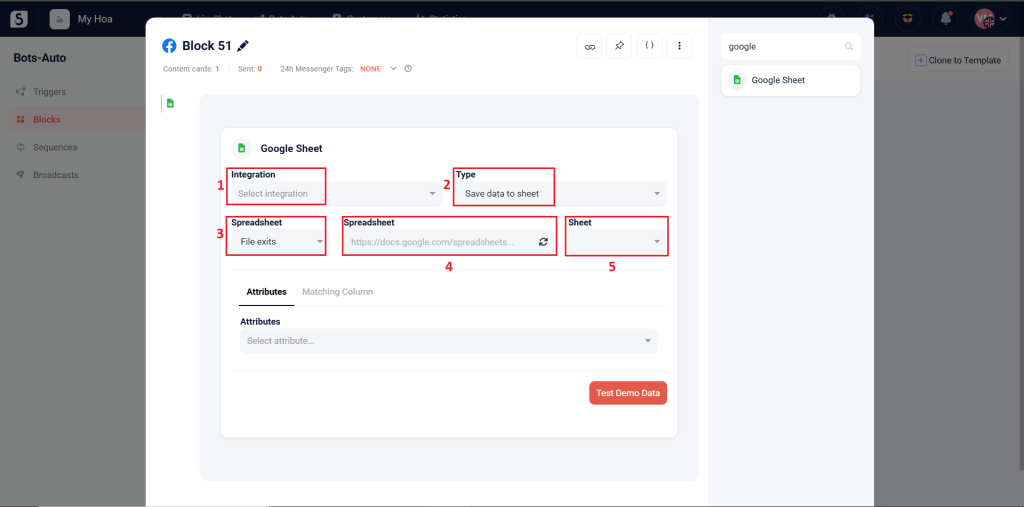
First, you must select the integrated Google account (1). Next, select the Type of action: Save data to sheet or Get data from sheet (2).
In the Spreadsheet field, select Existing File (3) and enter the file’s path in the Spreadsheet field (4).
After the system loads the Google Sheet file, select the sheet where the data will be saved or retrieved (5).
Save data to sheet #
You can choose Attributes method or Matching Column method to save data.
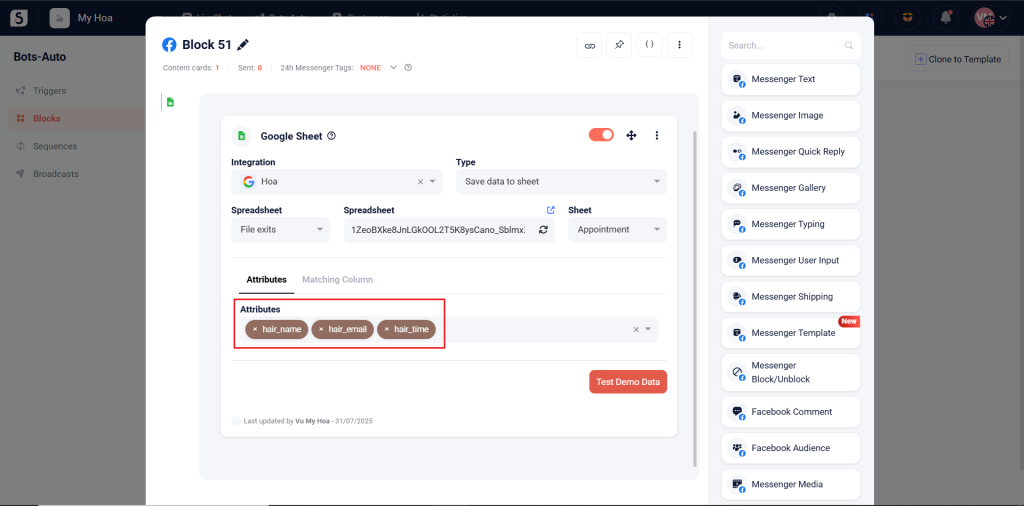
Attributes: Save the attributes to columns in order. #
Example: If the Appointment sheet has 3 columns: Customer Name, Email, Preferred Time, the Google Sheet card will save the attributes {{hair_name}}, {{hair_email}}, {{hair_time}} into these columns, respectively.
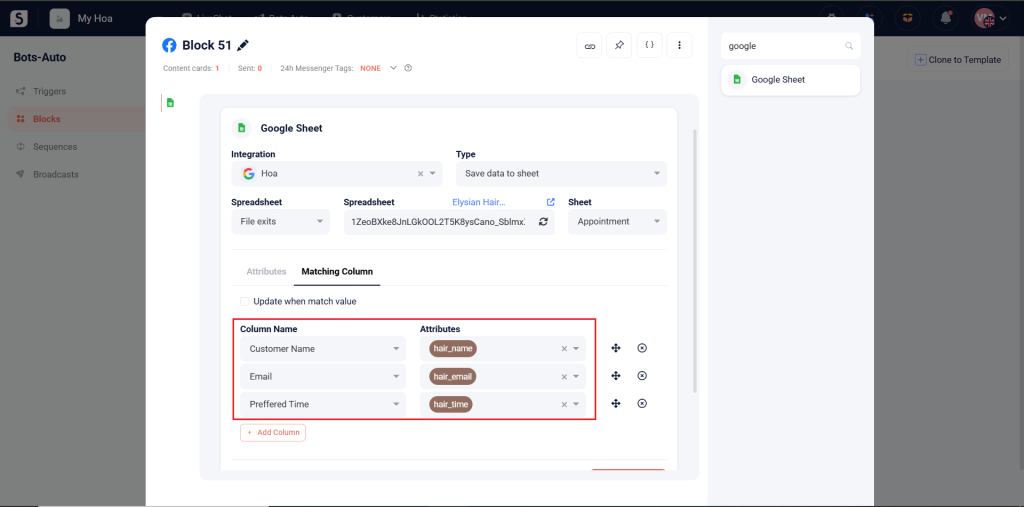
Matching Column: Search and save based on an existing column. #
Matching Column method can be used in 2 ways:
– Save the information to a new row.
Example: The attribute {{hair_name}} will be saved to Customer Name column, the attribute {{hair_email}} will be saved to Email, and the attribute {{hair_time}} will be saved to Preferred Time.
– Find a row with a specific value and update other columns in that same row.
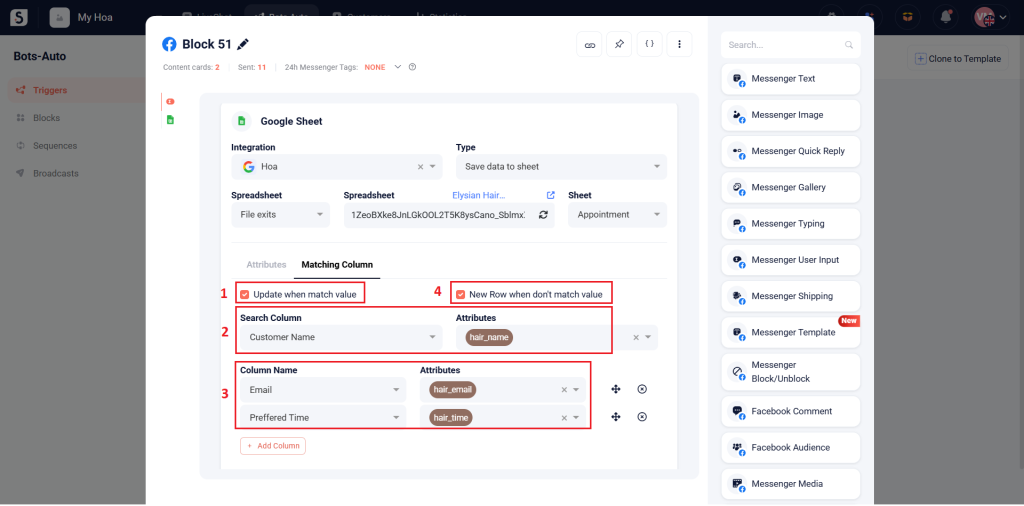
If you click Update when match value (1), the Search Column field will appears (2). Select the column you want to retrieved data from and its corresponding attribute. Then, choose the columns you want to save data (3). If no matching row is found, the system will automatically create a new row (4).
Example: You want to save the email and booking time of a customer named Elisa, select the Customer Name column in the Search Column field to find the row that contains Elisa. Once the customer enters their email and booking time, the data will be saved to the Email and Preferred Time columns, respectively.
Get data from sheet #
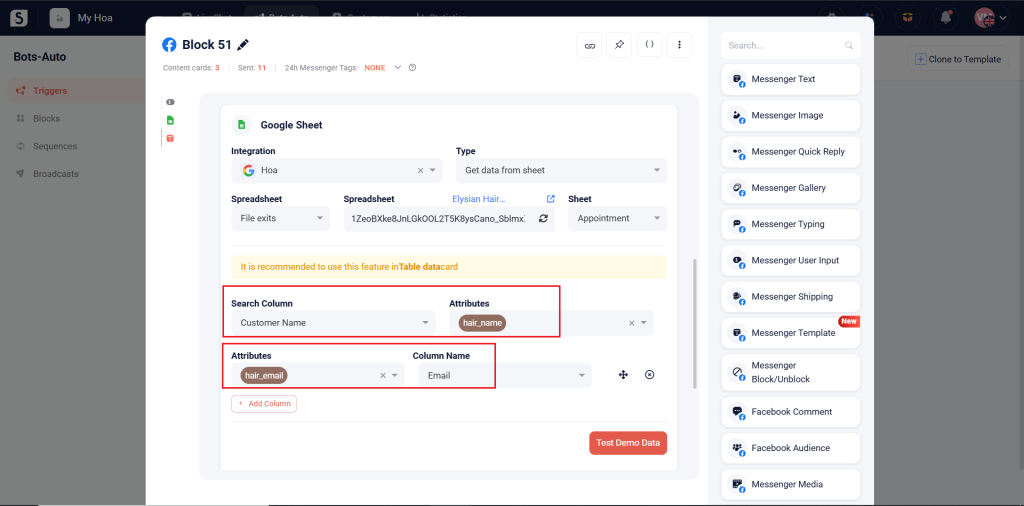
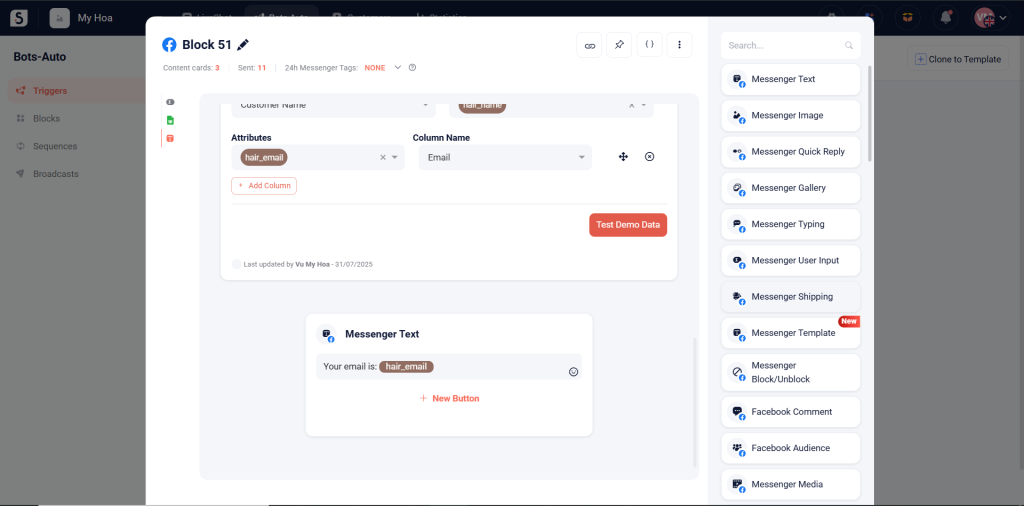
Example: When customers enter their name, the system will find the matching rows and retrieve their email. You need to add a Messenger Text card to send that email back to the customer.