
The GenAI card is used to connect with the GenAI module and respond to customer messages based on the provided prompt.
1. Connect GenAI Agent to Chatbot: #
Step 1: First, create the AI in the GenAI module. (Refer to this guide for more details.)

Step 2: Choose the AI Agent you’ve created in the GenAI Module.
Step 3: Enter the prompt content that the AI will use to respond.
- If you want the AI to respond based on the last message from the customer, select the attribute
{{last_content_by_user}}. - If you want the AI to respond based on your own instructions, input your custom prompt.
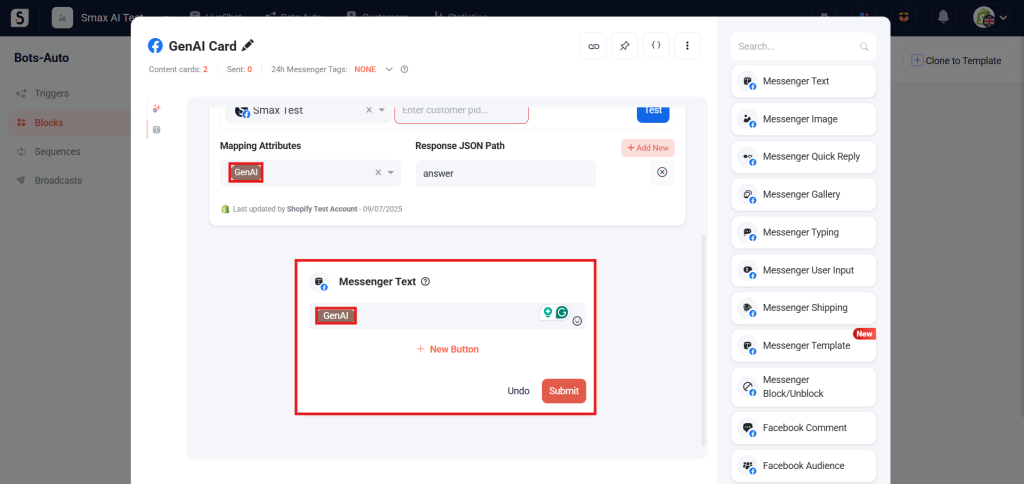
Step 4: In the Map Attributes field, choose Add New, then choose the attribute where the AI response will be saved.
- Response JSON Path: Enter
answerto map the response correctly. - After configuring, click Submit to store the card’s information.

2. Use GenAI Agent to Respond to Private Message or Comment #
2.1. For Private Message #
You will need to add a Text card to send the AI’s response. The content of the Text card will use the attribute mapped in the GenAI card.
To save time, you can use these templates:
2.2. For Comment #
You will need to add a Comment Card to send AI’s reply. The text of the Comment Card will use the attribute mapped in the GenAI card.
To save time, you can use this template: AI Facebook Comment Responder


