
The Go To Block card is a powerful tool used to redirect the conversation flow from the current block to another pre-created block in your scenario.
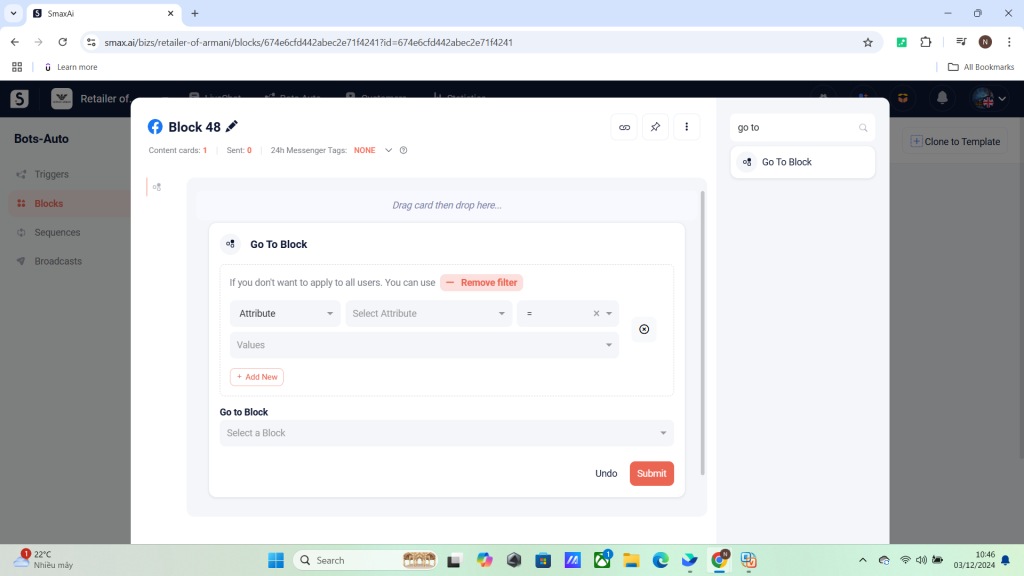
When to Use the Go To Block Card #
Unlike buttons that need a user’s click, the Go To Block card automatically guides users. This makes it crucial for building clean, reusable flows & personalizing the chatbot experience.
| Use Case | Description | Practical Example |
| User Segmentation | Send users to different blocks based on personal attributes like gender, age, or other attributes. | Placing Go To Block card after a User Input card (with a gender filter) helps lead the customer to “Men’s” or “Women’s” collections. |
| Fallback & Error Handling | Handle incorrect or confusing inputs by redirecting users to support or retry blocks. | If a user fails to answer correctly after 2 tries, use a Go To Block to send them to “Talk to a Live Agent.” |
| Simplifying Complex Flows | Avoid repeating the same messages by reusing shared blocks across flows. | Use Go To Block to link to common blocks like “Shipping Info,” “Payment Methods,” or “FAQs” in multiple sequences. |
Steps to Use Go To Block #
Important: When placed in the middle of a flow, all cards below the Go To Block card will be skipped, and the bot will immediately redirect to the selected block.
Step 1: Add the Go To Block card to your current scenario.
Step 2 (Optional): Use the Filter section to choose who should go to the new block (based on attributes such as gender, quiz answers, interests, etc.)
Step 3: In the Go to Block field, choose the destination block or create a new block.
Step 4: Click Submit to save your setup.


