Skip to content
Test Store

Test Store

  • Blog
  • About Us
  • Solution
    • Apparel & fashion
    • Home & Garden
    • Beauty & Personal Care
    • Food and Beverage
  • Help Center

Getting Started

5
  • Template Library
  • Creating Biz
  • Module Introduction
  • Explain the service package
  • Biz API

Live Chat

20
  • FollowUp
  • Chat Session
  • Bot
  • Overview
  • Merged Channel
  • Conversation filter
  • Tags
  • Message Templates
  • Internal Messages
  • Meta Conversion API
  • Add new channel
    • Telegram
    • WhatsApp
    • Tiktok User
    • Line
    • Website
    • Instagram
    • Facebook
  • Conversation Role
    • Manual splitting
    • Automatic allocating
    • Configure roles

Bot-Auto

138
  • Introduction to Bot Automation
  • Blocks
  • Sequences
  • Broadcast Sending
  • Advance Filters
  • Funtions
  • Trigger List
    • View List of Triggers
    • Facebook
      • Messenger Welcome Message
      • GenAI
      • Messenger Shopping
      • LiveChat Tags
      • Bot API
      • Click To Message
      • Messenger Persistent Menu
      • Comment
      • Keywords
      • Messenger Ref Link
      • Messenger Default
      • Messenger Welcome
    • LINE
      • Trigger Tag
      • Bot API
      • Group GenAI
      • GenAI
      • Group Keywords
      • Keywords
      • Line Group Default
      • Line Default
      • Line Group Welcome
      • Line Welcome
    • Tiktok User
      • Trigger Tag
      • Bot API
      • GenAI
      • Keywords
      • Tiktok User Default
      • Tiktok User Welcome
    • Instagram
      • GenAI
      • LiveChat Tags
      • Bot API
      • Instagram Persistent Menu
      • Comment
      • Keywords
      • Instagram Ref Link
      • Instagram Default
      • Instagram Welcome
    • Telegram
      • LiveChat Tags
      • Bot API
      • Gen AI
      • Keywords
      • Telegram Welcome
      • Telegram Default
    • Website
      • Trigger Tag
      • Bot API
      • GenAI
      • Keywords
      • Website Default
      • Website Welcome
  • Functional Card
    • LINE
      • Line Template
      • Line Quick Reply
      • Line User Input
      • Line Image
      • Line Text
    • Facebook
      • Messenger Shopify Order Details
      • Add Album
      • Messenger Template
      • Messenger Receipt
      • Messenger Product
      • Messenger CAPI
      • Messenger Handover
      • Messenger Marketing Message
      • Messenger Attach File
      • Messenger Audio
      • Messenger Video
      • Messenger Feedback
      • Messenger Media
      • Facebook Audience
      • Facebook Comment
      • Messenger Block/Unblock
      • Messenger Shipping
      • Messenger User Input
      • Messenger Typing
      • Messenger Gallery
      • Messenger Quick Reply
      • Messenger Image
      • Messenger Text
    • WhatsApp
      • WhatsApp Document
      • WhatsApp Template
      • WhatsApp User Input
      • WhatsApp Audio
      • WhatsApp Video
      • WhatsApp Image
      • WhatsApp Interactive
      • WhatsApp Text
    • Instagram
      • Instagram Shopify Order Details
      • Instagram Audio
      • Instagram User Input
      • Instagram Video
      • Instagram Gallery
      • Instagram Image
      • Instagram Text
    • Website
      • Website Text
      • Website Image
      • Website Gallery
      • Website User Input
      • Website Quick Reply
    • Tiktok Shop
      • Tiktok Shop Image
      • Tiktok Shop Text
    • TiktokUser
      • TiktokUser User Input
      • TiktokUser Text
    • Advanced Cards
      • Shopify
      • Change Tags
      • Custom Image
      • Open Gift / Add Turn Number
      • Find Customer
      • Thread Note
      • Assign to Staff
      • GenAI
      • Note
      • Follow Up
      • Thread Status
      • On/Off Bot
      • Go To Block
      • JsonAPI
      • Delay
      • Sequence
      • Set Attributes
      • Parse Content
      • Google Sheet
      • Send QR
      • Send Email
      • Check Time Range
      • Time Calculator
      • Send Block
      • A/B Testing
      • Input/Output
      • Table Data
      • Lucky Wheel/ Add Turn Number
    • Telegram
      • Telegram Image
      • Telegram Text

Customers

5
  • Customer Profile Panel
  • Export
  • Import
  • Segments
  • Customer Search

Settings

25
  • Edit Your Business
  • Channels
  • Members
  • Webview Domains
  • Attributes
  • Tags
  • Message Templates
  • API
  • Packages
  • Logs
  • Integration
    • Internal form
    • DeepSeek
    • XAI (Grok 3)
    • Claude
    • Gemini
    • Google Sheet
    • SMTP
    • Embedded Form
    • Groq
    • OpenAI
    • Shopify
      • Connect to Product Management Module
      • Connect to Order Management Module
      • Connect to Chatbot
      • Use Shopify in Live Chat Module
      • Intergrate Shopify

Extend Modules

49
  • Messenger Templates
  • Selling Page
  • WhatsApp Template
  • Quizzes
  • Order Management
  • Meta Catalogs
  • Marketing Messages
  • Meta CAPI
  • Products
  • Meta Custom Audience
  • Email Builder
    • Activate Email Builder
    • Connecting and Using Email Builder
    • Edit Email Interface
  • Customize Image
    • Activate Customize Image
    • Create Personalized Image
    • Layer Configuration
  • Follow Up
    • Follow Up Using GenAI
    • Follow Up Content
    • Activate Follow Up
    • Connecting to Chatbot
    • Follow Up Settings
  • Gift Opening Game
    • Activate Gift Opening Game
    • Connecting to Chatbot
    • Content Configuration
    • Edit Gift
    • Open Gift Design
    • Notification Configuration
  • Lucky Wheel
    • Activate Lucky Wheel
    • Connecting to Chatbot
    • Content Configuration
    • Edit Prizes
    • Spinner Design
    • Spinner Configuration
  • Form Builder
    • Activate Form Builder
    • Connecting to Chatbot
    • Form Configuration
    • Element Configuration
  • Data Table
    • Data Table Use Cases
    • Data Table Setup
  • GenAI
    • Demo and Review
    • Config
    • Prompts
    • Create GenAI Agents
    • AI Agent Types
      • Translate
      • Post Content
      • Quiz Maker
      • Conversation Note
      • Message Content
      • AI Chatbot

Statistic

5
  • Interactive
  • Tags
  • Marketer
  • Supporter
  • Customers
View Categories
  • Home
  • Help Center
  • Extend Modules
  • Customize Image
  • Layer Configuration

Layer Configuration

Est reading time: 2 minutes

Layers are elements displayed in the customer’s personalized image, such as images, text, QR codes, and barcodes.

Text Layer #

  • Purpose: Displays a text segment in the personalized image, such as name, date, phone number, address, or customer attributes from the chatbot.
  • Position: Adjust the position of the text layer relative to the image (left margin and top margin in px).

  • Size: Adjust the width and height of the text layer. Center the text layer by setting the left margin to 0px and the width to match the image width.
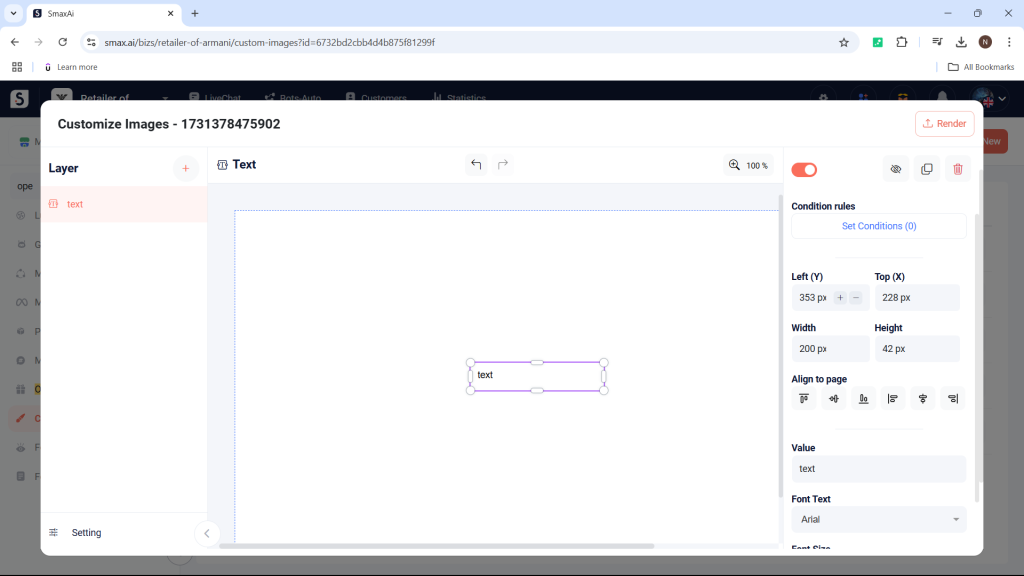
Alignment Options: #
  • Vertical Alignment:
    • Top
    • Center
    • Bottom
  • Horizontal Alignment:
    • Left
    • Center
    • Right

You can combine alignment styles, for example:

  • Top alignment + Left alignment for the top-left corner.
  • Bottom alignment + Right alignment for the bottom-right corner.
  • Value: The displayed text content can be specific or use customer attributes, e.g., {{facebook.name}}, {{phone}}, {{email}} for personalized experiences.

  • Font and Size: Adjust the font and size to fit the image.
  • Textbox Margins: Similar to page margins, you can position the text inside the textbox (the green frame around the image).

Image Layer #

  • Purpose: Displays an image. You can use the attribute {{facebook.picture}} for the customer’s avatar or upload a specific image.
  • Position, Size, and Alignment: Same as the text layer.
  • Value:
    • Upload: Select a file from your computer.
    • Attribute: Choose an attribute from SmaxAI to display.

You should adjust the width and height of uploaded images to ensure complete visibility. The system will support a preview field for attributes.

  • Shape:
    • Normal: Displays according to the specified width and height.
    • Circle: Displays the image in a circular shape.
    • Square: Adjusts to form a square based on the shorter side.
  • Border: Add a border to the image, customizing color and thickness.

QR Code Layer #

  • Purpose: Converts text (including URLs) into a QR code.
  • Position, Size, and Alignment: Same as the text layer.
  • Value: Input the text or URL to convert into a QR code.
  • Color: Customize the display color of the generated QR code.

Barcode Layer #

  • Purpose: Functions similarly to the QR code layer.

Layer Arrangement #

When creating layers in the personalized image, arrange them logically to avoid obscuring important visuals. Layers are displayed in order from top to bottom. For example:

  • The Text layer on top will overlay the two Image layers below.
  • Image Layer 2 (right cat) arranged above Image Layer 3 (left cat) will partially cover the latter.
Updated on 14/11/2024

What are your Feelings

  • Happy
  • Normal
  • Sad

Share This Article :

  • Facebook
  • X
  • LinkedIn
  • Pinterest
Create Personalized ImageActivate Customize Image

Leave a Comment Cancel reply

Table of Contents
  • Text Layer
    • Alignment Options:
  • Image Layer
  • QR Code Layer
  • Barcode Layer
  • Layer Arrangement
© 2026 Test Store • Built with GeneratePress